Around 2 weeks ago, while setting up some stuff for my homelab and hacking projects, I tried sending files of a binary dump (or something, I can't really remember) to my laptop from my desktop. I tried sending it to myself via email, but it was blocked. I then tried Google Drive and OneDrive, and same thing, blocked. At this point, I thought to myself, "Dang, sending files between my devices is gonna be a pain if I have to deal with these filters every time." And then I thought to myself, "Why not just set up my own cloud server?" So I did.
The open-source, self-hostable cloud platform Nextcloud is what I chose to solve this issue. I don't have to deal with pesky filters and I can control everything I want to do with my files. Plus, I can get gigabit speeds when transferring files when on my local network. So I set off to set up an Ubuntu Server on my old PC turned server.
I first installed Ubuntu Server 22.04 on the machine and installed the snap installation of Nextcloud during initial installation. I would have installed Ubuntu Server 26.04 but the USB I had at the time had 22 and I was too lazy to reflash it with 26. I'll eventually upgrade it to 26 but for now we're running Ubuntu Server 22.04 LTS.
After installing Ubuntu, I set up SSH keys, enabled UFW, installed fail2ban, and some other hardening stuff. Before exposing it to the internet, I wanted to test everything on my local network first.
The setup at a glance
- Machine: Old desktop PC, repurposed as a server
- OS: Ubuntu Server 22.04 LTS
- Cloud platform: Nextcloud (snap)
- Storage: 4TB WD Red NAS drive
- Networking: Gigabit switch, wired ethernet
- Remote access: Cloudflare Tunnel (no open ports)
First boot, first wall
I pointed my laptop's browser at the server's local address, and the very first thing Nextcloud did was refuse me.
Access through untrusted domain.Turns out Nextcloud keeps an allowlist of domains and addresses it's willing to answer on, and anything not on that list gets bounced. I added the local address to the list, reloaded, and the login page finally appeared. With that sorted, it ran fine on the 1TB drive I'd started with. Just an old drive I had lying around. Which is exactly where the next problem came from.
The drive had seen better days
Before I got too far, I pulled up the health stats on that 1TB drive and I think it's seen better days. It was a consumer drive with somewhere around 29,000 power-on hours on it, which works out to roughly three and a half years of continuous spinning, and it was never designed for always-on duty in the first place. If I was going to trust this thing to hold my files 24/7, I wanted a drive actually built for it. So I swapped in a proper NAS-rated drive.
While looking for some replacement hard drives, I came across a MicroCenter listing a 4TB WD Red NAS hard drive for only around $150. With the cost of computer parts nowadays, I just couldn't let it go to waste. So I bought it, along with some other small things, and went home.
I cold-swapped it, powered the machine back on, and instead of booting, it dropped straight into emergency mode. The system's list of filesystems still referenced the old drive that was no longer physically there, and it flat-out refused to finish booting without it. I edited that list from the emergency prompt to stop pointing at a drive that didn't exist anymore, rebooted, and got a clean start.
I don't know why I didn't do this first (I do. I was just impatient) but if you're going to pull a drive that's listed in your filesystem table, fix the table before you reboot, or set it up so a missing drive doesn't block the boot.
For reference, here's the new drive's health report after getting everything settled 280 hours in:
smartctl 7.5 2025-04-30 r5714 [x86_64-linux-7.0.0-15-generic]

=== START OF INFORMATION SECTION ===
Device Model:     WDC WD40EFZZ-68CPAN0
Firmware Version: 81.00A81
User Capacity:    4,000,787,030,016 bytes [4.00 TB]
Sector Sizes:     512 bytes logical, 4096 bytes physical
Rotation Rate:    5400 rpm
Form Factor:      3.5 inches
SMART support is: Enabled

=== START OF READ SMART DATA SECTION ===
SMART overall-health self-assessment test result: PASSED

ID# ATTRIBUTE_NAME          FLAG     VALUE WORST THRESH TYPE      UPDATED  WHEN_FAILED RAW_VALUE
  1 Raw_Read_Error_Rate     0x002f   200   200   051    Pre-fail  Always       -       0
  3 Spin_Up_Time            0x0027   100   253   021    Pre-fail  Always       -       0
  4 Start_Stop_Count        0x0032   100   100   000    Old_age   Always       -       3
  5 Reallocated_Sector_Ct   0x0033   200   200   140    Pre-fail  Always       -       0
  7 Seek_Error_Rate         0x002e   100   253   000    Old_age   Always       -       0
  9 Power_On_Hours          0x0032   100   100   000    Old_age   Always       -       280
 10 Spin_Retry_Count        0x0032   100   253   000    Old_age   Always       -       0
 11 Calibration_Retry_Count 0x0032   100   253   000    Old_age   Always       -       0
 12 Power_Cycle_Count       0x0032   100   100   000    Old_age   Always       -       3
192 Power-Off_Retract_Count 0x0032   200   200   000    Old_age   Always       -       0
193 Load_Cycle_Count        0x0032   200   200   000    Old_age   Always       -       72
194 Temperature_Celsius     0x0022   116   112   000    Old_age   Always       -       31
196 Reallocated_Event_Count 0x0032   200   200   000    Old_age   Always       -       0
197 Current_Pending_Sector  0x0032   200   200   000    Old_age   Always       -       0
198 Offline_Uncorrectable   0x0030   100   253   000    Old_age   Offline      -       0
199 UDMA_CRC_Error_Count    0x0032   200   253   000    Old_age   Always       -       0

SMART Error Log Version: 1
No Errors Logged

SMART Self-test log structure revision number 1
No self-tests have been logged.
"Permission denied" — except it wasn't
With the new drive in, I wanted the actual files to live on it rather than on the same disk as the operating system. I'd mount the drive and tell Nextcloud to use it. Instead I ran straight into a brick wall and stayed there for a while.
Your data directory is not writable.Except it was writable. A simple ls -la verified it. I could create files in it as root. I could create files in it as the web server user. But the snap version of Nextcloud runs inside a confinement sandbox, and that sandbox plays by different rules than my shell. What looked perfectly fine from the outside was being blocked from the inside.
I checked several things. User ID mismatches. Mount options. File ownership. A startup "fixer" the snap runs. Even the sandbox's own security profile, which, when I actually went and read it, explicitly allowed the writes it was supposedly blocking.
The real answer was quite simple, and it had been sitting in Nextcloud's own documentation. Why I didn't go there first, I have no clue (Again, I do know why. I was impatient and didn't want to read). The folder above the data directory has to be owned by root, not by the web server user. The snap's fixer sets the permissions inside the data directory itself, but it can only do that if root owns the path above it, so it's able to traverse in under confinement. One ownership change and the whole thing worked on the next restart.
I'd skipped the docs at the start because I already "knew" it was a permissions problem. It was a permissions problem. Just not even close to the kind I'd assumed. Only took me like 2 hours to fix. Oops...
The cable that lied to me
With the storage sorted, I turned to the network. The server had been running over wifi, and I wanted it wired via ethernet for both stability and speed. I ran it through a gigabit switch, plugged everything in, tested the throughput, and got... 95 Mbps. On gigabit hardware. With a gigabit-rated cable. On a 2.5 gigabit port on my PC.
So it was sitting right under 100 Mbps, which was oddly specific. Gigabit Ethernet needs all four twisted pairs inside the cable to be intact. If even one of those pairs is damaged, the link quietly negotiates down to 100 Mbps and carries on as if nothing's wrong, never bothering to mention that it's running at a tenth of its potential. And it's been years that this cable has been connected to my PC... Oops.
So when I connect ethernet cables, I actually cut, strip, and crimp the cables myself. Except when I first connected my PC, I was just learning how to do that, so upon further investigation, the cable going into my PC was damaged right at the plug. Makes sense that the throttling was something an inexperienced past me caused. Oops again!
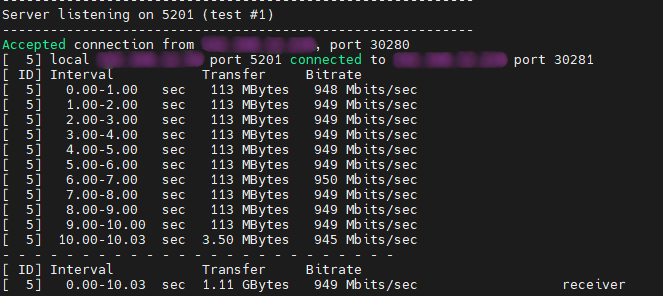
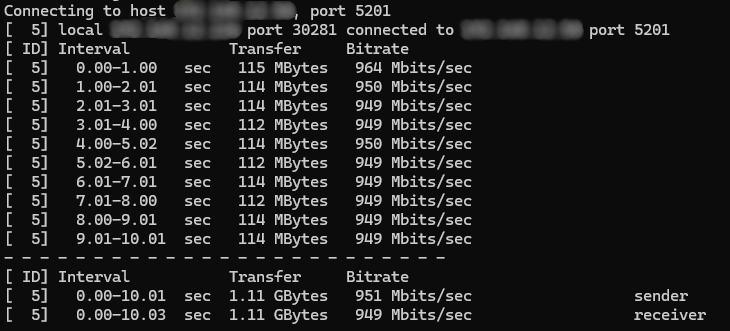
As soon as I crimped a new plug and connected the cable to the switch, the speeds bumped up to what I expected: gigabit speeds. I used iperf3 to confirm the speed between my PC and my server, and it was working perfectly.
The address that wouldn't stay put
Wired and finally fast, but a new annoyance showed up: my gateway kept handing the server a different local address whenever it felt like it, usually after a reboot or when a lease expired. That's a real problem when a bunch of your configuration is pointing at one specific address. My gateway doesn't give me any way to permanently reserve an address for a device, which is a known limitation of these units, so I pinned a static address on the server itself instead, and left wifi configured as an automatic fallback in case the wired connection ever drops.
The gateway, being stubborn, would still occasionally try to override that. So I wrote a tiny watchdog that runs every few minutes, checks whether the server still has the address it's supposed to have, and if it doesn't, quietly puts it back and flags it to me. I don't particularly like the gateway due to its limitations, but it's cheaper than basically every major internet provider in my area so I'll always look for workarounds.
At this point everything was working end to end on my local network. Fast, stable, and stably addressed. Which meant it was time to make it tougher before letting the outside world anywhere near it.
Locking it down
I'd done the basics on day one, but before exposing anything I went back over it properly. I'm not going to publish my exact configuration, but the shape of it: SSH is key-only with passwords disabled entirely, root login is turned off, and I moved SSH off its default port purely to cut down on the relentless background noise of bots probing on port 22. UFW only allows what it actually needs. Fail2ban watches for anyone trying to brute-force their way in and bans them automatically. On the Nextcloud side I turned on its built-in brute-force protection and enabled two-factor authentication on my account. I think it's pretty secure, and I have several systems in place just in case anything even breathes in its direction wrong.
Teaching it to nag me
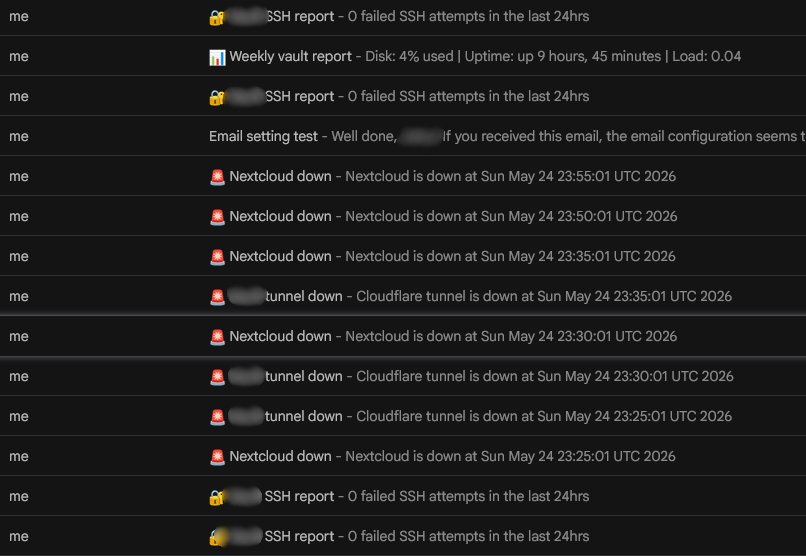
A server I can't see is a server I'll completely forget about right up until the moment it's on fire. Out of sight, out of mind is inevitable for me. So I set up email alerts for some things: the disk filling up, a service falling over, a sudden spike in failed logins, and later the tunnel dropping. I configured a mail relay so the box could send those alerts out through an email provider rather than trying to be its own mail server. Those are also the same alerts that little IP watchdog from earlier uses to flag itself whenever it has to step in. Now the server nags me before things turn into problems, instead of me discovering them the hard way later.
Reaching it from anywhere
Local setup solid and locked down, the last big job was reaching it from outside the house. And this is where most "just forward a port on your router" tutorials fall apart for me, because my home internet is a cellular gateway, and like a lot of cellular and 5G home internet it sits behind something called CGNAT. There's no public address I can actually point at, and port forwarding simply isn't an option.
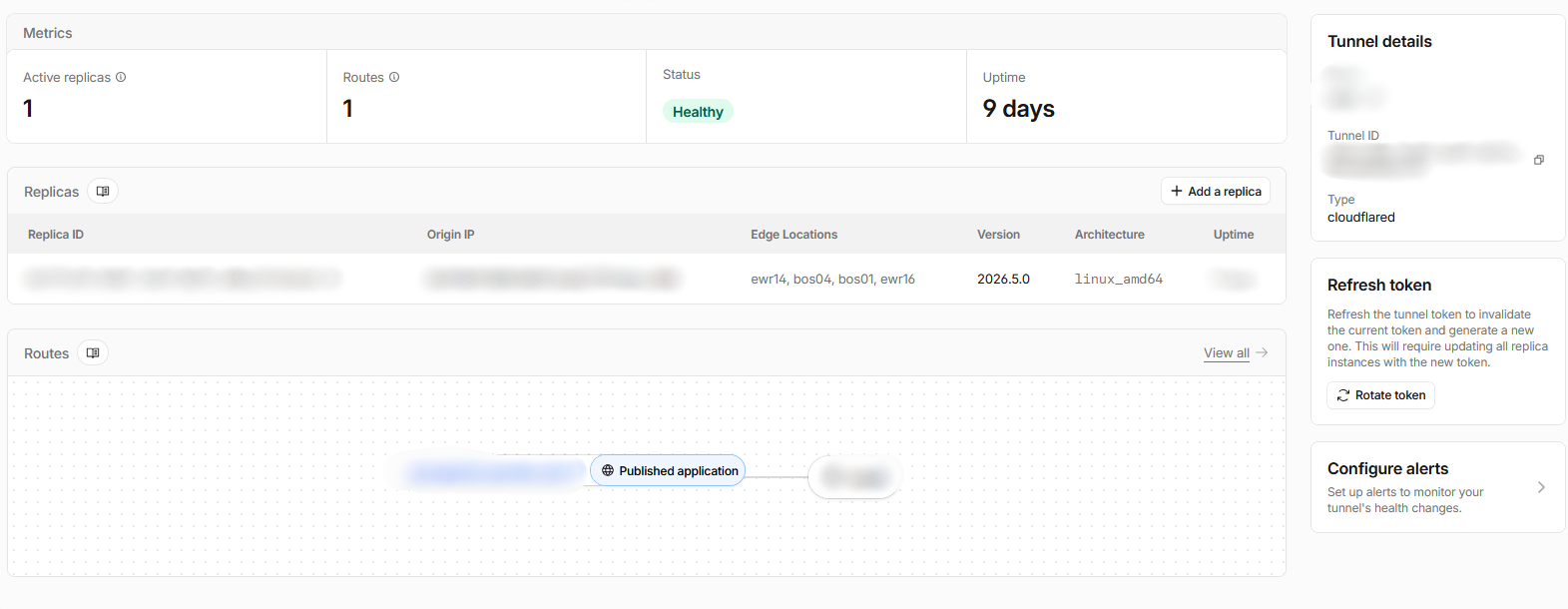
Cloudflare Tunnel solves this in a way I like. Instead of opening a hole inward through my router, the server dials outward and holds open an encrypted connection to Cloudflare's network. When a request comes in for my domain, it lands on Cloudflare and gets piped back down that outbound tunnel to my server. My router never has a single open port. My home IP address is never exposed to anyone. It's free, and it's honestly a stronger security posture than port forwarding would have been in the first place.
I pointed a subdomain at the tunnel (I'm keeping the exact name to myself for obvious reasons), put the whole thing behind HTTPS, added the new address to that trusted-domains allowlist from way back at the start, and just like that my files now accessible from anywhere in the world. Because every request now routes through Cloudflare first, I also get DDoS protection, bot filtering, and TLS handled at the edge, with my real IP hidden behind all of it. Cloudflare takes care of everything for me essentially.
My files go into the backrooms
Everything was up and it was time to actually move my data in. Rather than clone the old disk, I'd decided to re-pull all my files from the copy I still had elsewhere. Somewhere around 112 GB, tens of thousands of little and big files. And I once again did a small oopsie.
After the drive swap, Nextcloud's database still "remembered" every file that had once been associated with the old setup — names, sizes, the works — even though the new disk had started blank. To clean that up, I ran a scan to reconcile the database with what was actually on disk, which correctly removed all those ghost entries. The problem is that my desktop sync client was running at the time, and it watched a whole pile of files suddenly "disappear" from the server. So it did what a sync client does and deleted its local copies to match.
Two-way sync treats "gone on the server" as "the user deleted this, so delete it here too." It doesn't ask. I sat and watched files vanish on both ends at once.
I didn't permanently lose anything, but only because I still happened to have the originals stored somewhere else. I learned to pause the sync client before doing anything server-side moving forward, but it really gave me a scare.
Trust, but verify
Once I had correctly uploaded all files (with the sync client paused), I wanted to verify everything was correct before moving forward. I compared the file count and the total size on the server against the source I'd uploaded from.
The counts roughly matched. But the total size was off by about 18 GB, which is far too much to shrug at. So I went hunting and found the culprit: a single large archive had silently failed to upload while everything around it succeeded. I re-sent that one file, re-checked the numbers, and this time everything lined up.
Good thing I verified. Even though Nextcloud showed everything as good, it wasn't.
Making it mine
Out of the box, Nextcloud is very... Nextcloud-blue. Since this thing lives under my own domain now, I themed it to match the rest of my site. The same dark background, the same accent colors, a custom logo, and a login screen that actually looks like it belongs to me.
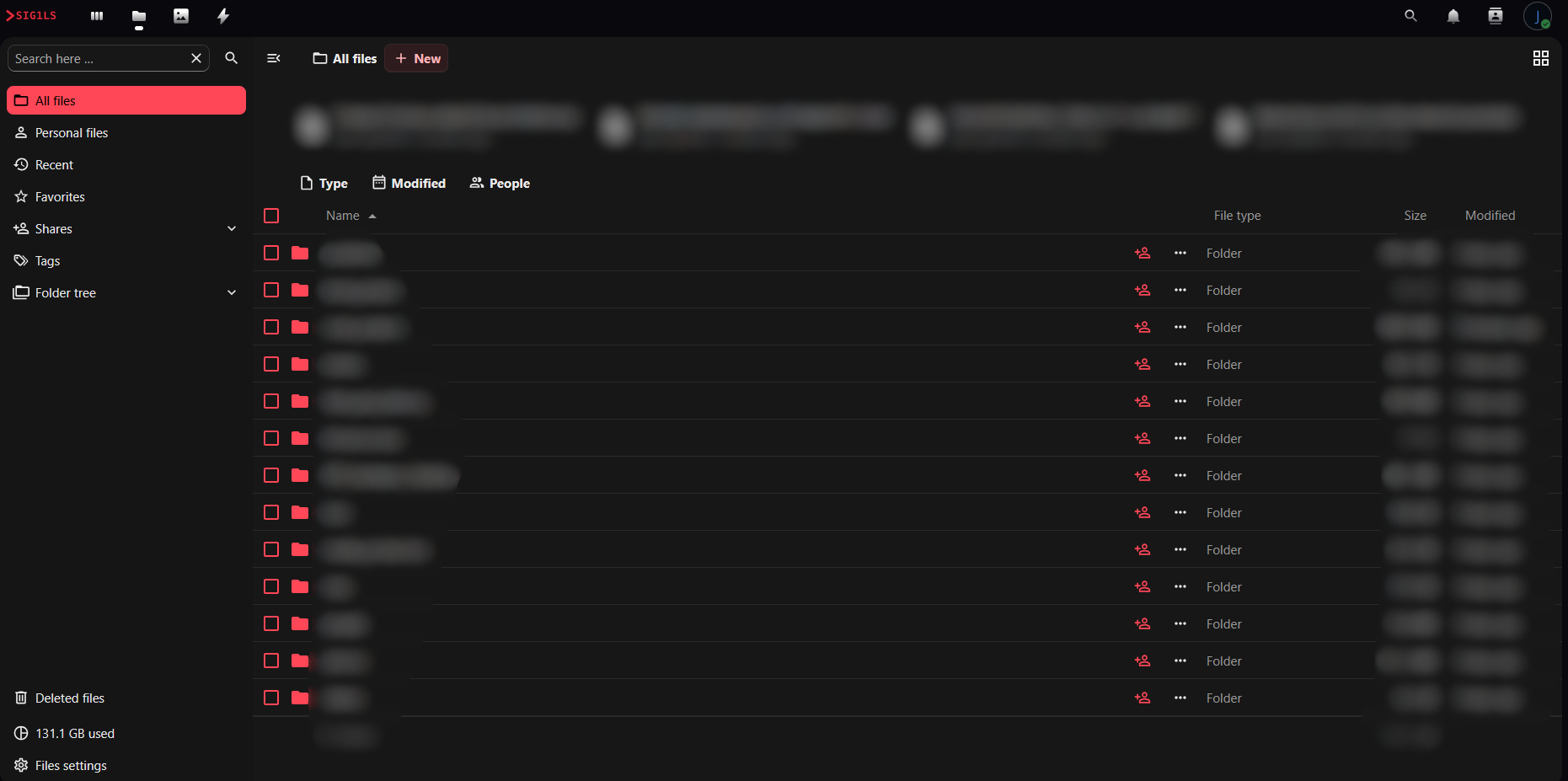
Where it stands
So that's the build. An old PC, a NAS drive, Ubuntu, Nextcloud, and a Cloudflare tunnel, adding up to a private cloud that I fully control, that's quite fast on my own network and reachable from anywhere I happen to be, with no monthly bill beyond the electricity and the domain name. Moving my own files between my own machines without some filter really does make my life a lot easier, seeing as I can send whatever I want now.
I'd be lying if I called it finished. I should probably set up backups at some point, and whenever budget allows I will. Perhaps the scariest thing that happened in this entire process is when my files decided to turn to digital dust, but thankfully the copy I had saved me. And apparently for upwards of 3+ years, I've been running with just 100 Mbps. I guess it goes to show that most daily usage doesn't need more than that anyways!